Best Free Graphic Design Tools for Beginners

The best free graphic design tools for beginners can remove one of the biggest barriers to learning design: the cost of professional software.
A beginner can now create social media posts, presentations, posters, simple logos, edited photographs and digital illustrations without immediately paying for a subscription. Some tools provide ready-made templates and drag-and-drop editing, while others offer the layers, masks, vector tools and drawing controls found in more advanced design software.
The difficulty is choosing the right platform. A tool that is excellent for Instagram graphics may be frustrating for detailed photo retouching. Software designed for digital illustration may be unnecessarily complicated if all you need is a presentation template.
This guide compares the main free options, including popular Canva alternatives, and explains which tools suit different forms of content creation, visual marketing and branding.
What Are Graphic Design Tools and Why Are They Important?
Graphic design software tools are applications used to create, edit and arrange visual elements such as photographs, illustrations, typography, colours, icons and shapes.
Some are simple browser-based editors. Others are professional desktop applications that require considerably more practice.
They can be used to produce:
- social media graphics;
- posters and flyers;
- presentations;
- website graphics;
- advertising material;
- infographics;
- simple logos;
- business documents;
- edited photographs; and
- digital illustrations.
Good software does not automatically produce good design. Layout, hierarchy, typography, colour, spacing and visual consistency still depend on the person making the creative decisions.
However, the right tool removes unnecessary technical barriers.
A small business owner who needs a promotional Instagram post may benefit from a template-led platform. A photographer may need precise image adjustments. Someone learning logo design software will usually gain more from vector software because vector graphics can be resized without becoming pixelated.
Understanding that difference makes choosing a tool much easier.
Why Beginners Should Use Free Graphic Design Tools
Paying for premium software before understanding what you actually need can be unnecessary.
Free tools allow beginners to experiment with different kinds of design software and discover which workflow suits them.
Someone interested mainly in digital marketing may realise that a template-based browser editor is sufficient. Another person may discover an interest in illustration and eventually move towards software such as Krita. Someone who enjoys designing logos, icons or diagrams may prefer Inkscape.
Free software is also useful for learning transferable concepts.
Once you understand layers, alignment, contrast, typography and image resolution in one application, many of those principles carry over to other software.
There are, however, two different meanings of “free” worth understanding.
A product such as GIMP or Inkscape is free and open-source software. Platforms such as Canva, Adobe Express, VistaCreate and Figma instead operate on a freemium model: there is a free tier, but particular features, templates, assets or collaboration options require payment.
Neither approach is automatically better. The important question is whether the free version contains what you need.
Essential Features to Look for in Graphic Design Software
Beginners can easily become distracted by long feature lists. Most people need only a relatively small set of capabilities at first.
An interface you can understand
If you spend more time searching menus than creating anything, the software may be too complex for your current needs.
Template-led editors such as Canva, Adobe Express and VistaCreate generally have gentler learning curves because much of the layout work has already been done.
GIMP and Inkscape offer greater control but require more learning.
Templates and design assets
Templates can be useful when creating social posts, presentations, posters or marketing graphics quickly.
They also help beginners understand spacing, alignment and visual hierarchy.
The limitation is originality. Using a popular template with minimal changes can make your work look similar to thousands of other designs.
Treat templates as starting points rather than finished creative decisions.
Layers
Layers allow elements to be edited independently.
For example, a poster might contain separate layers for a background photograph, heading, logo and call-to-action. Layers become especially useful in photo editing and more detailed compositions.
Typography controls
Look for control over font choice, size, weight, alignment, spacing and line height.
Typography often determines whether an otherwise simple design software feels organised or amateurish.
Export formats
Make sure the tool can export the file type needed for your final use.
PNG and JPEG are common for online graphics. PDF is often useful for documents and print. SVG is valuable for scalable vector graphics such as logos and icons.
Resize and layout options
A campaign might require one design software for Instagram, another for LinkedIn and another for a website banner.
Automatic resizing is convenient, although some platforms restrict advanced resizing to paid plans. Even where automatic resizing is unavailable, custom dimensions are worth having.
Brand controls
Businesses benefit from branding tools that help keep colours, typefaces and visual styles consistent.
Some free plans provide limited brand-kit functionality, while more advanced controls are commonly reserved for paid tiers.
Licensing clarity
Do not confuse access to an asset with unrestricted ownership.
Before using stock imagery, fonts, templates or icons commercially, check what the provider’s licence permits.
This is particularly important for logos, merchandise, templates for resale and products where a stock asset forms a substantial part of what the customer is buying.
Best Free Graphic Design Tools for Beginners
There is no single tool that is best for every type of design. The most useful approach is to match the application to the work.
| Tool | Best suited to | Main beginner advantage | Main limitation |
| Canva Free | General design and social content | Very easy template workflow | Many advanced assets and tools are paid |
| Adobe Express Free | Marketing and mixed-media content | Strong templates and Adobe ecosystem | Premium tools and assets are restricted |
| VistaCreate Starter | Social and promotional graphics | Large free template library | Advanced AI and team features require Pro |
| Photopea | Browser-based photo editing | Powerful PSD-style editing without installation | More complex than template editors |
| GIMP | Detailed photo manipulation | Deep image-editing capabilities | Steeper learning curve |
| Inkscape | Logos and vector graphics | Powerful scalable vector editing | Less convenient for quick template content |
| Krita | Drawing and digital illustration | Excellent free painting tools | Not intended primarily for marketing layouts |
| Figma Starter | Interface, layout and collaborative design | Flexible browser-based design workflow | Free team and file limits apply |
1. Canva Free — best starting point for general design
Canva is one of the easiest places to begin because it is built around templates and drag-and-drop editing.
Its free plan covers a broad range of design software formats and includes a large collection of free templates and media assets. Beginners can create posters, social graphics, presentations, documents and other visual material without learning traditional professional graphics software first.
Canva is particularly useful when speed matters.
A café owner could start with a menu template, change the colours and fonts, upload a logo and create a promotional post within a relatively short session.
The weakness of this convenience is that designs can become generic. Beginners should resist the temptation to use a template unchanged.
Change the type hierarchy, colours, imagery and spacing so that the finished design software reflects the intended audience rather than simply the template.
The free plan also has limits around premium content and certain advanced features. If you need extensive brand management, specialist editing or frequent premium AI functionality, check whether those features are included before building your entire workflow around them.
2. Adobe Express Free — strong all-round Canva alternative
Adobe Express is one of the most obvious Canva alternatives for beginners who want a template-led platform.
Its free plan includes templates, fonts, stock assets and standard tools for editing images, video and documents. It can therefore handle social media content, basic promotional material, simple presentations and mixed-media projects.
The advantage for beginners is breadth.
Someone can start with a template, make simple image adjustments, add typography and produce multiple types of content without switching between several complicated Adobe applications.
It is not the same as receiving Photoshop, Illustrator or other full professional applications for free.
Advanced editing and premium assets remain limited, so users should view Adobe Express as a streamlined content creation platform rather than a replacement for every specialist Adobe application.
3. VistaCreate Starter — good for social media and promotional graphics
VistaCreate follows a similar template-led approach.
Its free Starter plan provides a substantial collection of templates and creative assets alongside basic photo and video editing, social media scheduling and branding functions.
For beginners, the interface is designed around producing finished visual content quickly rather than mastering technical graphics terminology.
It is well suited to:
- promotional posts;
- social media graphics;
- simple advertising creatives;
- blog imagery;
- banners; and
- basic marketing material.
It is worth comparing VistaCreate directly with Canva and Adobe Express rather than assuming one will always be better.
Template style, free asset availability and interface preference can make a considerable difference to day-to-day usability.
4. Photopea — best browser-based option for advanced image editing
Photopea occupies a different category.
Instead of focusing mainly on templates, it behaves more like traditional professional image-editing software.
It supports layers, masks, smart objects, adjustment layers, paths and numerous filters. It can also open and save PSD files and supports a wide range of additional graphics formats.
This makes Photopea useful for beginners who want to understand how more advanced raster editing actually works without immediately purchasing specialist software.
You can use it for tasks such as:
- removing or replacing parts of photographs;
- combining several images;
- applying adjustment layers;
- working with selections and masks;
- adding text and graphics;
- retouching photographs; and
- opening existing PSD projects.
The learning curve is noticeably greater than Canva’s.
That is not necessarily a disadvantage. If the objective is to develop deeper editing skills, learning layers, masks and non-destructive adjustments can be more valuable than relying entirely on templates.
Photopea operates in a browser, which also makes it convenient for people who do not want to install desktop software.
5. GIMP — best free desktop option for detailed photo editing
GIMP is one of the best-known free open-source image editors.
It provides a broad set of tools for image manipulation, retouching, composition and digital artwork. It supports layers, selections, transparency, transformations, filters, plug-ins and numerous common file formats.
Compared with browser-based template tools, GIMP requires more patience.
You do not open GIMP and immediately see hundreds of ready-made social-media layouts. Instead, you learn how the image itself is constructed and edited.
This makes it useful for beginners who want more control over photographs and raster graphics.
GIMP is particularly appropriate when the task involves detailed image adjustments rather than fast marketing templates.
Its open-source model also means that the software itself is not a temporary free tier designed mainly to encourage an upgrade.
6. Inkscape — best free tool for vector graphics and simple logo work
Inkscape is a free open-source vector graphics editor.
Vector graphics are constructed mathematically rather than from a fixed grid of pixels. As a result, they can generally be enlarged or reduced without the loss of quality associated with enlarging a small raster image.
That makes Inkscape particularly useful for:
- logos;
- icons;
- diagrams;
- simple illustrations;
- typography-based artwork;
- shapes; and
- graphics that need to work at several sizes.
Inkscape uses SVG as its primary format and can work with several other common design software formats.
Beginners interested in branding should learn the difference between raster and vector graphics fairly early. Creating a logo only as a small JPEG can cause problems when the same logo later needs to appear on signage or large-format print.
Inkscape solves that problem by giving users access to genuine vector editing without a subscription.
However, designing a technically scalable logo is not the same as creating an effective or legally protectable brand identity. Originality, trademark considerations and professional design software judgement still matter.
7. Krita — best for digital drawing and illustration
Krita is primarily a digital painting and illustration application.
It includes multiple brush types, layers, drawing assistants, stabilisers and animation capabilities. For someone learning digital art, character illustration, concept work or hand-drawn graphics, it can be much more suitable than a template-based editor.
A beginner using a graphics tablet will find tools designed specifically for drawing rather than marketing layout.
That distinction matters.
Krita is excellent software, but it would be inefficient to learn it solely because you need to create a quick business presentation.
Choose it when illustration is the goal.
8. Figma Starter — useful for interface and collaborative design
Figma became widely known for interface and product design, but its current ecosystem extends beyond traditional UI work.
The free Starter plan provides access to several Figma products and allows beginners to explore layout, interface design, whiteboarding, presentations and related workflows.
Its strength lies in flexible composition and collaboration.
For someone interested in web interfaces, app layouts or modern digital product design, learning Figma can introduce useful concepts such as frames, components, responsive layouts and shared design software systems.
The free plan does have limits. Team file organisation, collaboration features, version history and some advanced or AI-assisted functions differ from paid plans.
For individual learning and experimentation, however, it remains a useful entry point.
Best Free Tools for Creating Social Media Graphics
For most beginners creating Instagram, Facebook, LinkedIn or similar visual posts, a template-led platform is usually the fastest choice.
Canva Free, Adobe Express Free and VistaCreate Starter are the most natural starting points because they combine templates, stock material, typography and common social-media formats.
Canva is particularly straightforward for first-time users.
Adobe Express is useful if you want Adobe’s integrated stock and font ecosystem.
VistaCreate is worth testing if its templates or editing workflow better match your preferred style.
The software matters less than maintaining a consistent design software system.
Choose a small colour palette, one or two typefaces and a recognisable approach to images. Repeating those elements creates stronger visual consistency than changing style with every post.
Also ddesign software for the platform rather than merely shrinking the same graphic.
Text that is readable on a desktop presentation may be far too small on a phone screen.
Best Free Tools for Creating Business Presentations and Marketing Materials
Canva and Adobe Express are strong choices for fast presentations, flyers, posters and other promotional material.
Figma can also work well where you want more precise control over layouts.
The best choice depends partly on how much design freedom you want.
Templates make production faster, but a completely template-led workflow can make business material look generic. More flexible software gives greater control but increases the time required.
For business content creation, establish consistency before adding decoration.
A simple presentation with clear headings, strong spacing and consistent typography often communicates better than a deck filled with animations and unrelated design software elements.
The same principle applies to brochures and flyers. Design should make the information easier to understand.
If the document contains prices, dates, legal qualifications or product claims, visual appeal should never come at the expense of clarity.
Best Free Tools for Photo Editing and Image Creation
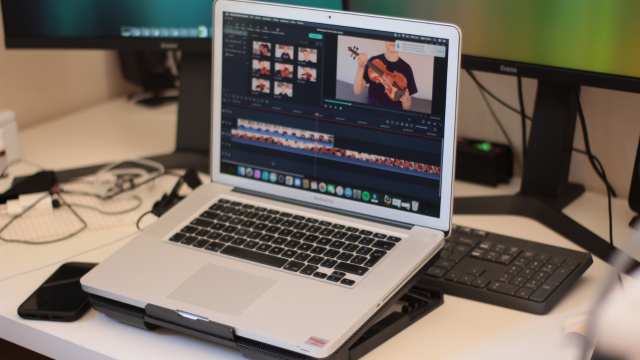
Photopea and GIMP are the strongest choices in this list when actual photo manipulation is the priority.
Photopea is convenient because it runs in a browser and provides an interface familiar to people who have seen professional layer-based editing software.
GIMP offers a mature desktop environment for detailed image manipulation.
For digital painting rather than photography, Krita is usually a more natural choice.
Canva, Adobe Express and VistaCreate can all make simple image adjustments, but they are primarily designed to help users produce finished layouts quickly. They are not substitutes for deeper image-editing applications in every situation.
This distinction becomes important when tasks involve detailed selections, masks, colour correction or complex compositing.
How to Choose the Best Graphic Design Tool for Your Needs
Do not choose software because it has the longest feature list.
Start with the work you actually need to produce.
If your goal is regular social media posts, begin with Canva, Adobe Express or VistaCreate.
If you want detailed photo editing, try Photopea or GIMP.
For logos, scalable graphics and icons, learn Inkscape.
For digital drawing, Krita is the obvious candidate.
If you are interested in website or app interfaces, Figma deserves serious attention.
Then consider how you work.
A browser-based tool is convenient when switching between devices. Desktop software may be preferable if you want greater offline control or work with large local files.
Finally, consider what happens if your needs grow.
A free tool may be ideal for learning but restrictive when a business needs collaboration, extensive brand management, approval workflows or larger storage capacity.
Testing two or three platforms with the same small project is often more informative than reading dozens of feature comparisons.
Benefits and Limitations of Free Graphic Design Tools
The biggest advantage is accessibility.
Beginners can learn design software principles and produce useful work without committing to expensive software.
Free tools are also surprisingly capable. For many freelancers, students, charities and small organisations, basic marketing graphics do not require the most expensive professional suite.
The limitations become more obvious as requirements grow.
Freemium platforms may restrict premium templates, stock libraries, advanced resizing, background removal, collaboration, AI usage or storage.
Open-source applications avoid many subscription restrictions but may require more technical learning and provide fewer ready-made commercial templates.
Licensing is another consideration.
A free account may give you access to an asset while still placing conditions on how that asset can be reproduced, resold or used as a standalone element. Check the current licence when creating work for clients, products for sale or important commercial branding.
Finally, software cannot replace design software judgement.
A poorly structured advertisement remains poorly structured even if it was created with an expensive application.
Future Trends in Graphic Design and AI Design Tools
Artificial intelligence is becoming increasingly integrated into mainstream graphic design.
Design platforms are adding tools that can generate images, suggest layouts, remove backgrounds, rewrite text, transform objects and create visual variations from prompts.
For beginners, this can reduce technical friction.
Someone who cannot draw an illustration from scratch may be able to produce an initial concept and then refine it manually.
However, AI also creates new responsibilities.
Generated material should be checked carefully for visual errors, inappropriate details and misleading information. Businesses also need to consider intellectual-property terms, confidentiality and the provider’s rules for commercial use.
AI is therefore unlikely to make design software knowledge irrelevant.
If anything, easier generation makes judgement more important. When anyone can produce twenty visual options quickly, the valuable skill becomes recognising which one communicates the message effectively.
Another likely trend is convergence.
Platforms that once specialised in one task are increasingly expanding into presentations, video, websites, social publishing and AI-assisted content creation.
This is convenient but can also make product comparisons more confusing because features and free-tier limits change frequently.
Beginners should avoid chasing every newly released feature.
Learning hierarchy, colour, typography, composition and audience awareness will remain useful regardless of which AI tools become popular.
Key Takeaways
The best free graphic design tools for beginners depend on what you want to create.
Canva Free is an easy general starting point, while Adobe Express and VistaCreate are strong Canva alternatives for template-led marketing content.
Photopea and GIMP provide greater control for photo manipulation. Inkscape is particularly useful for vector graphics and logo-related work, while Krita is designed around digital painting and illustration. Figma is worth learning for interface and design software collaborative digital design.
Do not judge tools only by the number of templates or AI features they offer. Consider export formats, licensing, learning curve, file handling and whether the software fits the work you expect to produce regularly.
FAQ
What is the best free graphic design tool for beginners?
Canva Free is one of the easiest starting points for general-purpose beginners because its drag-and-drop editor and templates reduce the amount of technical knowledge required.
That does not make it the best choice for every task. Photopea or GIMP may be better for detailed image editing, Inkscape for vector graphics, and Krita for digital illustration.
What are the best free graphic design tools?
Strong free choices include Canva Free, Adobe Express Free, VistaCreate Starter, Photopea, GIMP, Inkscape, Krita and Figma Starter.
They serve different purposes, so the best option depends on whether you need templates, photo editing, vector graphics, digital painting, presentations or interface design.
Can beginners use professional graphic design software for free?
Yes. GIMP, Inkscape and Krita are free open-source applications with capabilities suitable for advanced creative work.
Photopea also provides sophisticated browser-based editing.
However, professional capability often brings a steeper learning curve. Beginners may need tutorials and regular practice before using the more advanced features confidently.
Which free tool is best for social media graphics?
Canva Free, Adobe Express Free and VistaCreate Starter are particularly convenient for social media because they provide templates and layouts designed around common digital formats.
Rather than choosing solely by template quantity, test the interface and design software check whether the free asset library contains the styles you actually need.
What is the easiest graphic design tool for beginners?
Template-based editors are generally easier than traditional professional software.
Canva is particularly approachable because many tasks use a drag-and-drop workflow. Adobe Express and VistaCreate are similarly accessible.
More advanced programs such as GIMP and Inkscape take longer to learn but provide greater control for specialised tasks.
Are free graphic design tools good enough for businesses?
They can be.
A small business may be able to create social posts, presentations, flyers and website graphics entirely with free design software software.
However, growing organisations may eventually need more advanced branding tools, collaboration controls, storage, approval workflows or licensed premium assets.
Businesses should also check the licence applying to any templates, photographs, fonts or stock elements incorporated into commercial work.
What features should I look for in graphic design software?
Look for an understandable interface, useful typography controls, layers where relevant, suitable export formats, custom dimensions, good image handling and enough free assets for your needs.
Businesses may also value brand controls and collaboration features.
The ideal feature set depends on what you plan to create rather than how many tools the application advertises.
Can AI help beginners with graphic design?
Yes. AI can help with initial concepts, image generation, background removal, layout suggestions and other repetitive tasks.
It should be treated as an assistant rather than a substitute for judgement.
Beginners still need to check the output, understand visual hierarchy and consider copyright, licensing, accuracy and brand consistency before publishing AI-assisted work.
Conclusion
Finding the best free graphic design tools for beginners is easier once you stop looking for one application that does everything.
For quick marketing graphics and everyday content creation, Canva, Adobe Express and VistaCreate offer accessible template-led workflows. For more detailed editing, Photopea and GIMP provide greater control. Inkscape introduces proper vector design, Krita supports digital illustration, and Figma opens the door to interface and collaborative design.
The right tool should fit the job rather than force the job to fit the software.
Beginners can also combine tools. You might edit an image in Photopea, create a vector icon in Inkscape and then assemble the final social graphic in Canva. This type of mixed workflow becomes increasingly natural as your skills develop.
Those who want to build their knowledge further can combine practical experimentation with structured learning. Skills Pack includes design-related subjects within its wider online course catalogue, although studying a course or receiving a completion certificate should not be treated automatically as proof of professional design software competence.
Start with one tool and one realistic project. Learn why the layout works, not merely which button produces it. That foundation will remain valuable even as Canva alternatives, AI features and new branding tools continue to change.